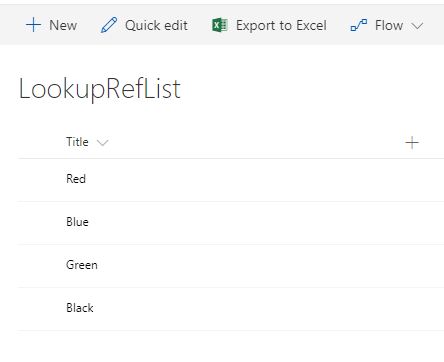
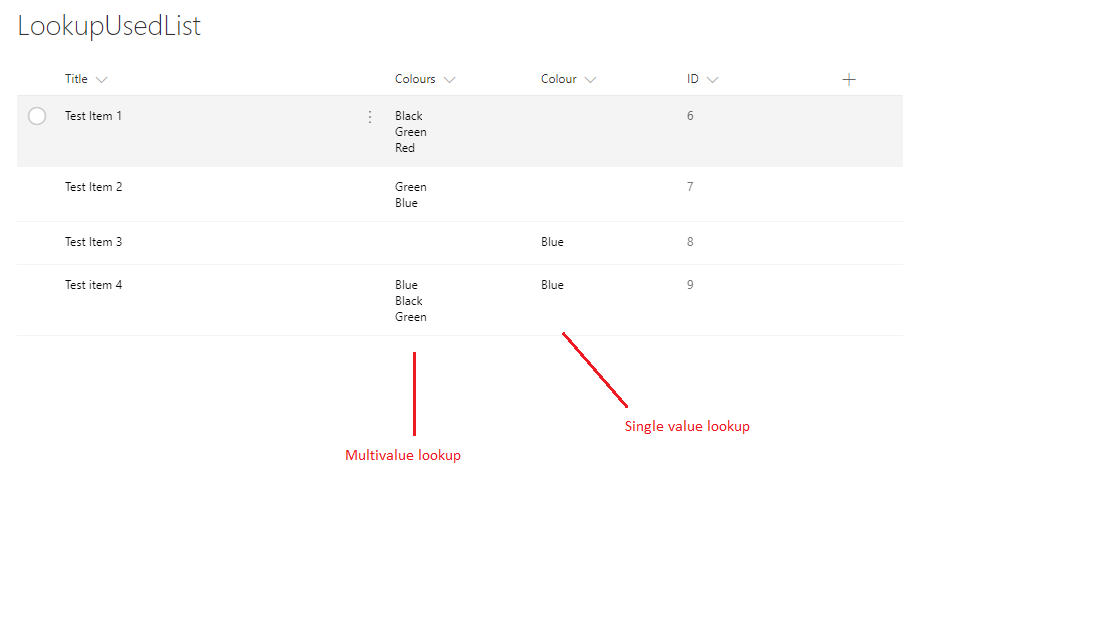
Part I of this post explains a couple of limitations of working with Microsoft Flow and SharePoint Multi-value lookup field.
Work with Multi-value lookup fields in Microsoft flow and SharePoint - Part 2
To overcome the challenge I decided to use SharePoint REST API to retrieve the field values. As you may already know, flow provides HTTP Trigger action which we can use to call the SharePoint REST API. The idea is to get an access token and retrieve the values through this HTTP trigger action. There are two great posts that helped me get an Access token, SharePoint scribblings and Shantha Kumar's blog
To start with, register an app in your SharePoint site through the "_layouts/15/AppRegNew.aspx" page. Provide the appropriate permissions so that it can access the multi-value lookup field data.
You'll have the client ID and client secret of the app. Also find out the TenantID of the tenant you are working on.
We create a new flow which is triggered when a new Item is created. Initialize the variables TenantID, ClientID, ClientSecret and a placeholder variable for AccessToken.

Next, add a HTTP trigger action, to get the access token

The body of this request is of the format
grant_type=client_credentials&client_id=<Client-ID>@<Tenant-ID>&client_secret=<Client-Secret>=&resource=00000003-0000-0ff1-ce00-000000000000/<tenantdomain>.sharepoint.com@<Tenant-ID>
Run the flow once till this step and see the history of the execution. Copy the body of the response. We will need it in the next steps.
Now we return to our flow and add a parse JSON action. Provide the "Content" as the body of the response from the previous HTTP trigger action. Use the body value copied in the previous step and paste it in the "Use sample payload to generate schema". This provides parse JSON action a sample format of the JSON that must be parsed.

Once this step executes, we are ready to use the access token. Next, use another HTTP trigger action to call SharePoint REST endpoint (here I have used a hard coded item ID) and retrieve the multi-value lookup field values. Along with the Title, you may also want to retrieve the ID of the looks. That might help you query other lists where these values may have been used.

The results show the lookup values that were selected for the item.

Now, we can then use these values as we would like to

Work with Multi-value lookup fields in Microsoft flow and SharePoint - Part 2
To overcome the challenge I decided to use SharePoint REST API to retrieve the field values. As you may already know, flow provides HTTP Trigger action which we can use to call the SharePoint REST API. The idea is to get an access token and retrieve the values through this HTTP trigger action. There are two great posts that helped me get an Access token, SharePoint scribblings and Shantha Kumar's blog
To start with, register an app in your SharePoint site through the "_layouts/15/AppRegNew.aspx" page. Provide the appropriate permissions so that it can access the multi-value lookup field data.
You'll have the client ID and client secret of the app. Also find out the TenantID of the tenant you are working on.
We create a new flow which is triggered when a new Item is created. Initialize the variables TenantID, ClientID, ClientSecret and a placeholder variable for AccessToken.

Next, add a HTTP trigger action, to get the access token

The body of this request is of the format
grant_type=client_credentials&client_id=<Client-ID>@<Tenant-ID>&client_secret=<Client-Secret>=&resource=00000003-0000-0ff1-ce00-000000000000/<tenantdomain>.sharepoint.com@<Tenant-ID>
Run the flow once till this step and see the history of the execution. Copy the body of the response. We will need it in the next steps.
Now we return to our flow and add a parse JSON action. Provide the "Content" as the body of the response from the previous HTTP trigger action. Use the body value copied in the previous step and paste it in the "Use sample payload to generate schema". This provides parse JSON action a sample format of the JSON that must be parsed.

Once this step executes, we are ready to use the access token. Next, use another HTTP trigger action to call SharePoint REST endpoint (here I have used a hard coded item ID) and retrieve the multi-value lookup field values. Along with the Title, you may also want to retrieve the ID of the looks. That might help you query other lists where these values may have been used.

The results show the lookup values that were selected for the item.

Now, we can then use these values as we would like to